







 Introduction
The easiest way to start withSecretCryptosis to download, verify, and install the desktop package for your OS (Windows, macOS, orLinux). All releases are carefully reviewed and digitally signed by our team to ensure authenticity and security. For most users, downloading the official signed version is the fastest and safest way to get started.
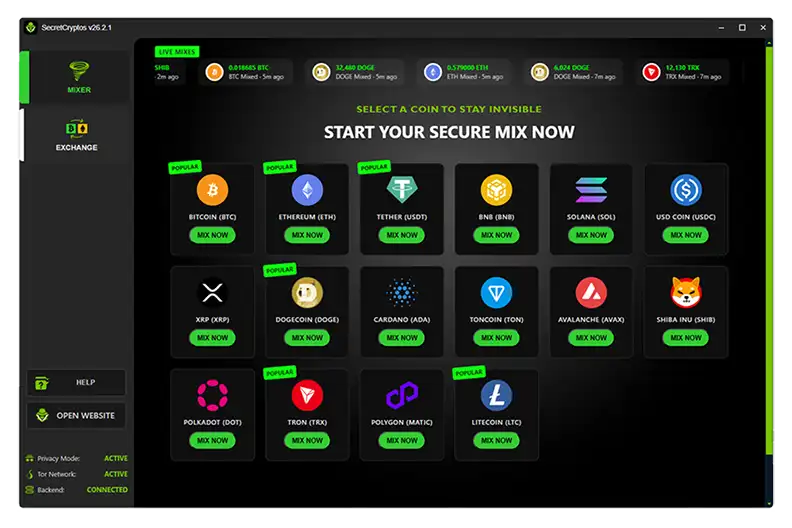
Once installed,SecretCryptosgives you direct access to ourCrypto MixerandInstant Exchangeservices, all in one privacy-focused desktop app.
With it, you can:
- Mix over16+ popular cryptocurrencieswith strong privacy protection.
- Swap coins instantlyacross multiple networkswithlive price updates.
- See yourmixing progressand recent transactions in real time.
- Use both mixing and exchange through a secure, encrypted connection withPrivacy ModeandTor Networksupport.
- Enjoy a smooth, user-friendly interface for Windows, macOS、Linux.
 SecretCryptos をステップバイステップでインストールします。
- このページからオペレーティング システムのパッケージをダウンロードします。
- (推奨) ダウンロードしたファイルの PGP 署名を確認します。 file.
- OS 上の他のアプリケーションと同様に、SecretCryptos をインストールします。
 Windows

- 最新の
.msiインストーラーとそれに一致する.asc署名ファイルをダウンロードします。 - 署名 (オプションの PGP 検証) を検証して、インストーラーが改ざんされていないことを確認します。
- Double-click the
.msiファイルをダブルクリックしてインストーラーを起動します。 - SmartScreen から警告が表示された場合は、詳細情報 → とにかく実行 をクリックします。この警告は、署名されていない実行可能ファイルでは正常です。
デフォルトのインストール パス (ユーザーごと):C:\Users\YourUsername\AppData\Local\Programs\SecretCryptos\
すべてのユーザーにインストールされた場合 (マシンごと):C:\Program Files\SecretCryptos\.
スタート メニューのショートカットとデスクトップ アイコンが自動的に作成されます。
 Debian / Ubuntu

- Download the
.debパッケージとそれに対応する.asc署名ファイルをダウンロードします。 - 署名を確認します (オプション) PGP 検証) を使用して信頼性を確認します。
- GUI (ダブルクリック) またはコマンド ラインを使用してインストールします。
sudo dpkg -i SecretCryptos-26.2.1-amd64.deb
sudo apt -f install
 その他の Linux

- Download the
.tar.gzアーカイブとそれに対応する.asc署名ファイルをダウンロードします。 - 署名を検証します(オプションの PGP 検証) を使用して、アーカイブが改ざんされていないことを確認します。
- アプリケーションを抽出して実行します。
tar -xzf SecretCryptos-26.2.1.tar.gz
cd SecretCryptos-26.2.1
./SecretCryptos
 macOS
macOS
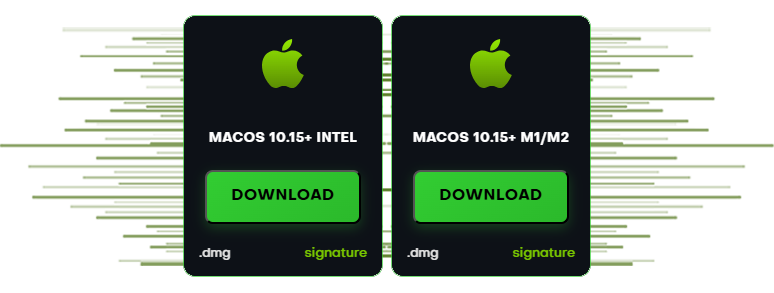
- CPU アーキテクチャ (Intel または Apple Silicon M1/M2) に適した
.dmgと、対応する.asc署名ファイルをダウンロードします。 - 署名を検証する前に (オプションの PGP 検証)インストール中。
- Open the
.dmgファイルを開いて、SecretCryptosをApplicationsフォルダにドラッグします。 - 初回起動時に、Gatekeeperから警告が表示された場合は、システム設定→プライバシーとセキュリティに移動し、とにかく開くをクリックします。.
 オプションの PGP 検証
すべてのリリース ファイルは、RSA-2048 PGP キーで署名されています。署名を検証して、信頼性と整合性を確保します。
1) 公開キーをインポートします
CLI (Windows / macOS / Linux)
gpg --import SecretCryptos_RSA2048.asc
gpg --fingerprint "SecretCryptos"フィンガープリントの出力は次のようにする必要がありますCCF7 09FD 0DCB 94AF 1D10 7070 AF37 2F7B 7428 E303
Long Key ID:0xAF372F7B7428E303
Windows (Kleopatra)
 Windows (Kleopatra)
- OpenKleopatra → File → Import→ selectSecretCryptos_RSA2048.asc.
- キーを開く→Detailsそしてフィンガープリントが正確に一致することを確認します。
2) ダウンロードしたファイルを確認します
各インストーラーには、一致する.asc署名があります。次のように確認します。
# Windows PowerShell
gpg --verify SecretCryptos-26.2.1.msi.asc SecretCryptos-26.2.1.msi

# macOS / Linux
gpg --verify SecretCryptos-26.2.1-amd64.deb.asc SecretCryptos-26.2.1-amd64.deb
gpg --verify SecretCryptos-26.2.1-arm64.dmg.asc SecretCryptos-26.2.1-arm64.dmg
gpg --verify SecretCryptos-26.2.1.dmg.asc      SecretCryptos-26.2.1.dmg
gpg --verify SecretCryptos-26.2.1.tar.gz.asc   SecretCryptos-26.2.1.tar.gz
You should see 良好な署名と、上記のフィンガープリントと一致する署名者キーが表示されるはずです。 「このキーは信頼された署名で証明されていません」と表示された場合は、ローカルの信頼設定に関するものです。フィンガープリントを比較します。
信頼レベルをマークする (オプション)
 信頼レベルをマークする (オプション)
gpg --edit-key 0xAF372F7B7428E303
gpg> trust
# choose an appropriate trust level for your workflow
gpg> save
 チェックサム (SHA-256)
オプションで SHA-256 を使用してファイルの整合性を検証します:
# Windows (PowerShell)
Get-FileHash .\SecretCryptos-26.2.1.msi -Algorithm SHA256

# macOS
shasum -a 256 SecretCryptos-26.2.1.dmg

# Linux
sha256sum SecretCryptos-26.2.1-amd64.deb
sha256sum SecretCryptos-26.2.1.tar.gz
- SecretCryptos-26.2.1.msi —
SHA256: (fill-in after build) - SecretCryptos-26.2.1.dmg —
SHA256: (fill-in) - SecretCryptos-26.2.1-arm64.dmg —
SHA256: (fill-in) - SecretCryptos-26.2.1-amd64.deb —
SHA256: (fill-in) - SecretCryptos-26.2.1.tar.gz —
SHA256: (fill-in)
 トラブルシューティング
- Windows SmartScreen:クリック詳細情報 → とにかく実行.
- macOS Gatekeeper:システム設定 → プライバシーとセキュリティ →とにかく開く.
- dpkg 依存関係エラー:欠落している deps を解決するには、
sudo apt -f installを実行します。 - 不正な署名:上記の実際の公開キーを使用して検証し、フィンガープリントが正確に一致することを確認してください。